
Teacher financials
Monthly fee management for teachers
Organize student plans, due dates, and payments in one place and cut down on manual tracking with spreadsheets and messages.
Each student has a plan, a due date, and a payment history visible to both of you. The system tracks due dates every day and shows who is up to date, who is pending, and who is overdue.
How monthly fee management works
Three steps to leave spreadsheets behind and always keep students' financial status visible.
- 01
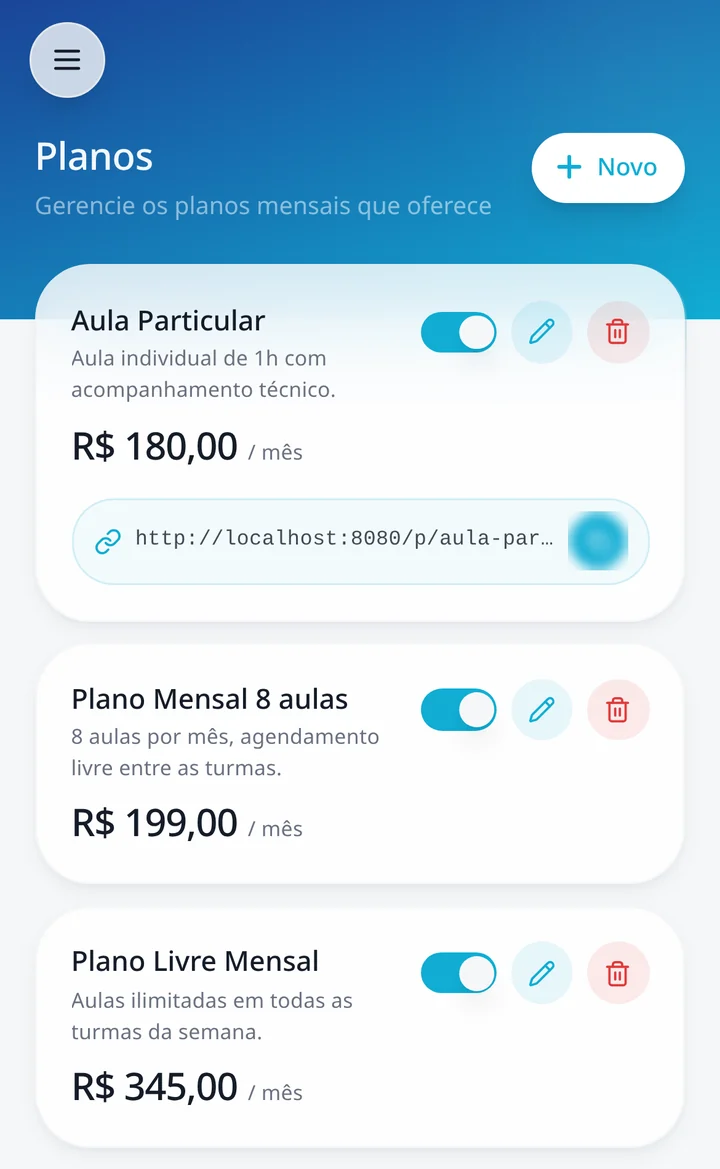
Set up your plans
Create your school's plans with name, description, price, billing cycle, and number of classes included.
- 02
Track payments
Assign the plan to the student with the due date that makes sense, or let them subscribe on their own. Each person's status remains visible on the dashboard.
- 03
Collect payments and keep history
Receive payments via Pix or card in your own account, with automatically generated PDF receipts and full history per student.
Student plans tailored to your school
You set up plans once and start using them for all students. There is no fixed format: the cycle, price, and number of classes are entirely up to you.
Cycles from monthly to annual
Monthly, bimonthly, quarterly, semi-annually, or annually. Each plan has its own billing cycle.
Number of included classes
Set how many classes the plan includes during the period and keep the limit clear for the student.
Due date set by you
When assigning a plan to a student, you freely choose the due date and whether it is already paid or pending.
Early renewal
The student can renew up to 5 days before the due date without losing the plan's anniversary date.
Track monthly fees without relying on spreadsheets
Each student's financial status is recorded in the system and updates automatically as payments and due dates occur.
Status by student
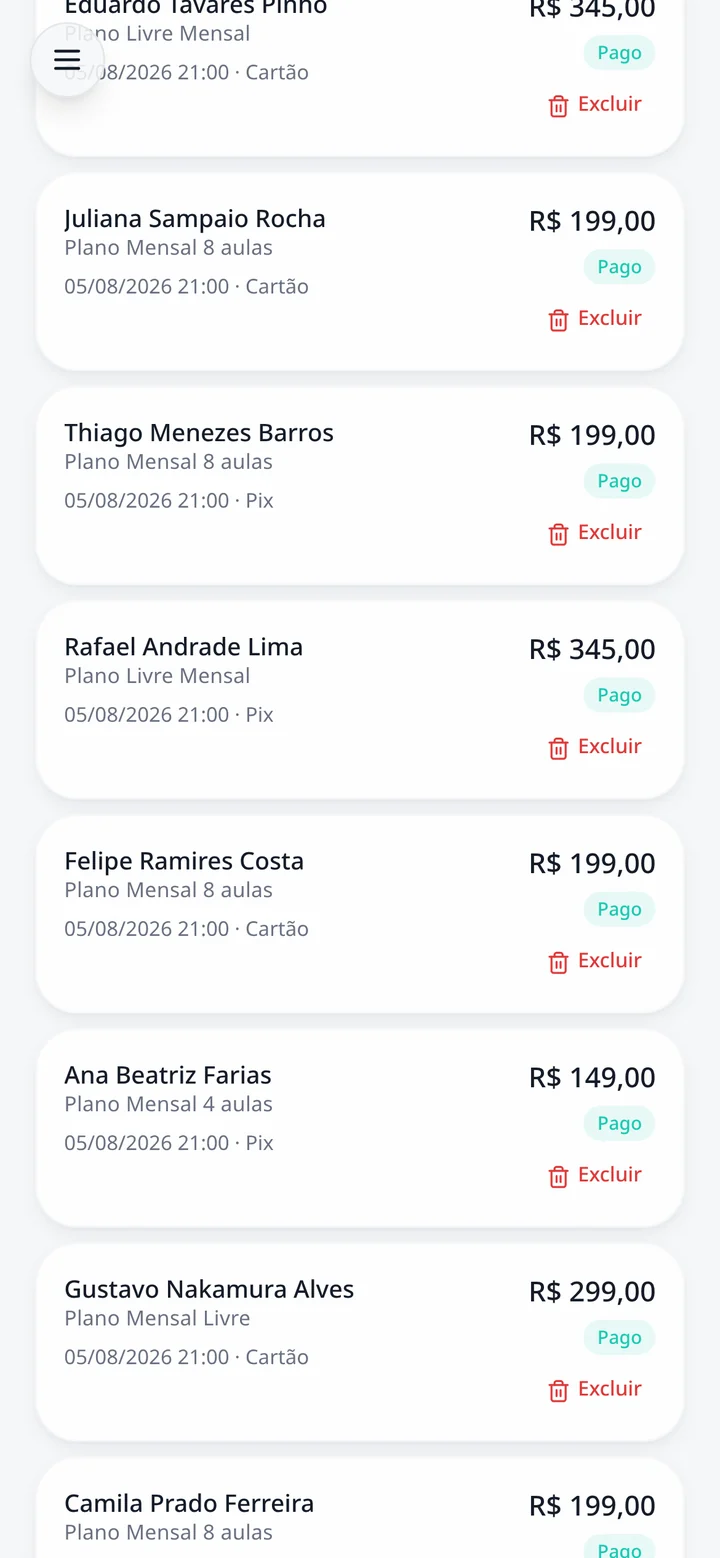
Paid, pending, or overdue, always visible on the student profile and general list.
Overdue items marked automatically
A daily routine marks monthly fees past their due date as overdue, without you having to check them one by one.
Overdue student counter
Quickly see how many students currently have overdue monthly fees.
Report with filters and export
Filter revenue by plan, student, payment method, and period, and export to CSV or PDF.
Manual payment record
Received in cash or outside the system? Mark the monthly fee as paid and the entry will be added to the history.
School revenue and expenses
Besides monthly fees, log other revenue and expenses to see the results for the period.
Receive monthly fees via Pix
Pix is available in different ways depending on the integration you use. Choose the one that suits your operation.
Pix via Mercado Pago
QR Code and copy-and-paste code generated by your own Mercado Pago account, with automatic confirmation as soon as the student pays.
Pix via Asaas
The student receives the invoice link from your Asaas account, and the payment is automatically confirmed.
Manual Pix
You register your Pix key and the student copies it to pay directly. In this format, there is no QR Code or automatic confirmation: you mark it as paid once the money hits your account.
Money goes straight to your account
With Mercado Pago and Asaas integrations, you connect your own payout account. Student payments are processed in it and funds go directly to you, with no platform intermediation in the transfer.
Your account, your payout
Charges are created using your account credentials with the chosen provider.
No split payments
IMUA does not hold or split the monthly fee paid by the student.
Provider fees
Processing fees are determined by the provider you connect, according to your account terms.
Recurring charges when it makes sense
Some payment methods charge automatically each cycle; others require a manual payment per period. It's worth knowing the difference before choosing.
Card: automatic billing
With card on Mercado Pago or subscription on Asaas, the provider charges each cycle and the monthly fee status updates automatically in the system.
Pix: one payment per cycle
Pix is paid each period. The system notifies the student when the due date arrives, but does not charge automatically.
Status updated by provider
When the payment is confirmed by the provider, the system receives the notification and updates the monthly fee without manual work.
Automatic due date reminders
Monthly fee notifications are sent via WhatsApp to students with a registered phone number and contact permission, reducing manual one-by-one follow-ups.
3 days and 1 day before
Students receive two reminders before the due date, with the amount and date.
On the due date, with Pix
On the due date, the system generates the Pix charge via Mercado Pago and sends the copy-and-paste code via WhatsApp.
Overdue reminder
After the due date, the student receives a new payment reminder every 3 days as long as the monthly fee remains open.
Organized receipts with no extra work
Whenever a monthly fee is confirmed, the receipt is generated in PDF and sent by email to the student. It is stored in the system for both parties.
Automatically generated PDF
The receipt is issued as soon as payment is confirmed, without you having to create anything.
Sent by email
The student receives the attached PDF with their details, school details, amount, payment method, and date.
Available for both sides
Teachers and students access receipts whenever they want; the student can also download and share them.
What students see
On the student's side, everything is on a single screen: active plan, next due date, and what has already been paid.
Plan and next due date
The student sees which plan is active and until when it is valid.
Instant payment
Pix with QR Code and copy-and-paste, or card, depending on the integration the teacher uses.
History and receipts
All payments with status, plus PDF receipts to view, download, and share.
Payment integrations
You activate one integration at a time, and charges are always in reais. Each option offers different features.
Mercado Pago
Connection through your account. Pix with QR Code and copy-and-paste, card with recurring billing, and automatic confirmation.
Asaas
Connection via your API key. Invoice with Pix or card, recurring subscription, and automatic confirmation.
Manual Pix
Just your registered Pix key. Simple to start, but without a QR Code or automatic clearing: confirmation is up to you.
What changes day-to-day
Less manual checking and more clarity on each student's status.
Everything in one place
Plans, due dates, payments, and receipts stay in the same system where you already manage classes.
Less manual checking
Payments confirmed by the provider are recorded automatically, without checking them one by one.
Organized history
Each student has a full record of what they paid, when, and by what payment method.
Due date visibility
See who is up to date and who is overdue without opening a spreadsheet.
Frequently asked questions
- How to manage student monthly fees?
- You create school plans with pricing and billing cycles, then link each student to a plan, setting the due date. From there, the system tracks each monthly fee status (paid, pending, or overdue), automatically updates overdue items, and gathers everything into a report with filters and exports.
- Does IMUA accept Pix payments?
- Yes. With Mercado Pago connected, students receive a QR Code and copy-and-paste code, and the payment is confirmed automatically. With Asaas, they pay via invoice, also with automatic confirmation. There is also manual Pix, where you simply register your key: in this case there is no QR Code or automatic clearance, and confirmation is done manually by you.
- Does the money go directly to the teacher's account?
- Yes. In the integrations with Mercado Pago and Asaas, you connect your own account and the charge is processed in it, so the amount paid by the student goes directly to you. IMUA does not hold or split this amount; processing fees are those of the provider you connect.
- Is it possible to use recurring billing?
- Yes, with credit card. In Mercado Pago, card subscriptions charge automatically each cycle, and Asaas also supports recurring subscriptions. Pix, on the other hand, is paid each period: the system sends reminders and the payment code on the due date, but does not auto-debit.
- Can teachers log a manual payment?
- Yes. When assigning or renewing a student's plan, you can mark the monthly fee as paid and choose the due date. The entry goes into the student's history and financial report like any other payment.
- Can students access receipts?
- Yes. When a monthly fee is confirmed, the PDF receipt is automatically generated and sent to the student by email. It is also saved in the system, where the student can view, download, and share it, and the teacher can check it whenever needed.
Put your school's monthly fees on organized autopilot
Try IMUA and see each student's financial status without relying on spreadsheets.
